The new Analytics Dashboard gives your hotel a clearer, more detailed view of housekeeping performance. You can analyze larger amounts of data over longer periods of time to help you understand how rooms are cleaned, how long it takes, and where improvements can be made.
This article explains what the new dashboard shows, how it works, and how to use it.
The Basics
The new Analytics Dashboard is designed to make reporting easier, faster, and more customizable.
What this means for you:
You can analyze larger data sets over longer periods of time
Reporting is more detailed and accurate, displaying data from all properties the user has access to
A more modern look means you can analyze and understand data faster
Important to know: Data is updated once per day and shows results up to the previous day.
Where to Find the Dashboard
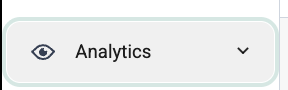
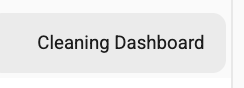
The dashboard is embedded directly in the Flexkeeping app, with no external tools needed. You can find it within the Analytics menu, on the left side toolbar.
Navigating the Analytics Dashboard
Dashboard Layout
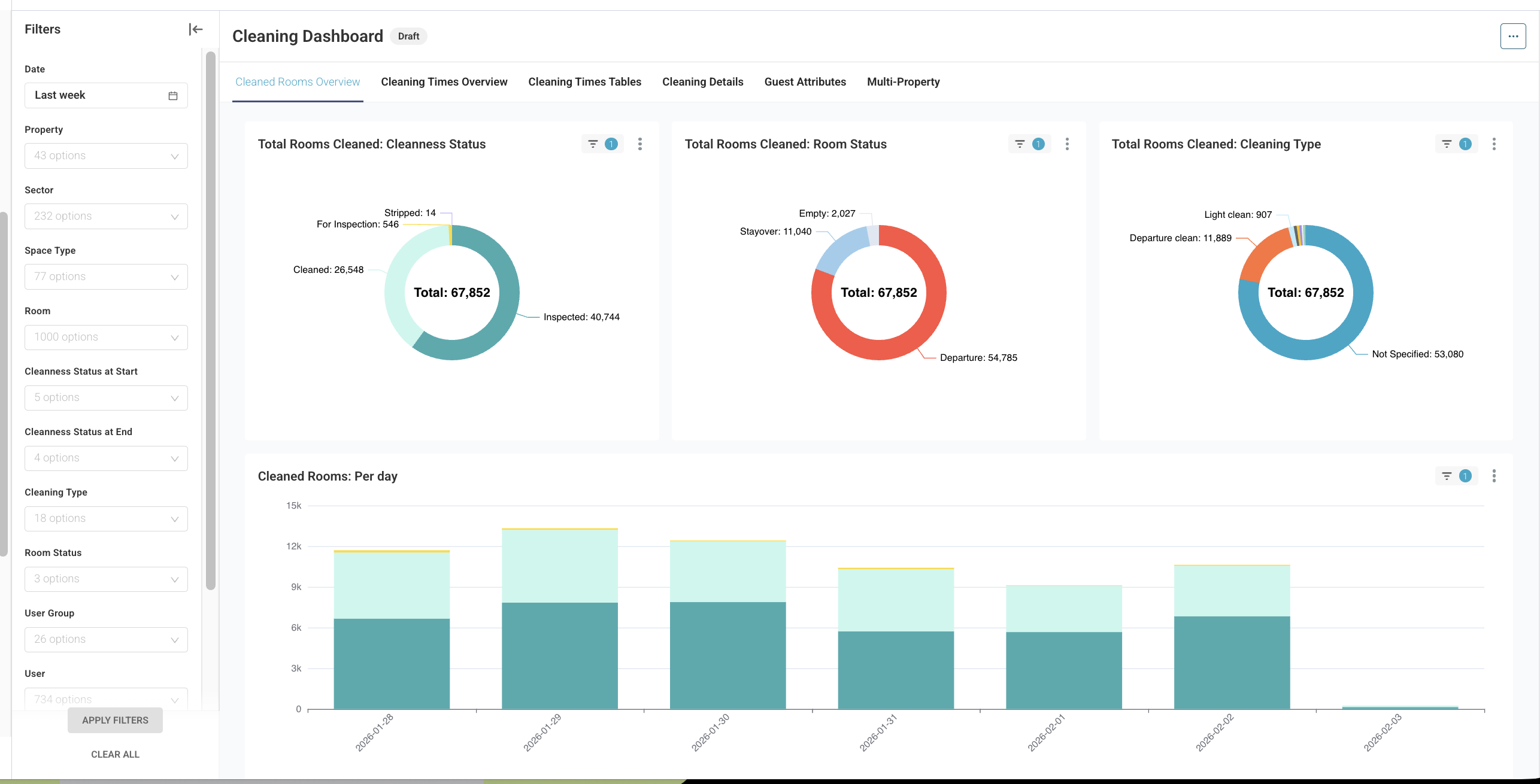
The dashboard is made up of:
- All charts are interactive and connected. Clicking on one chart will automatically filter the others.
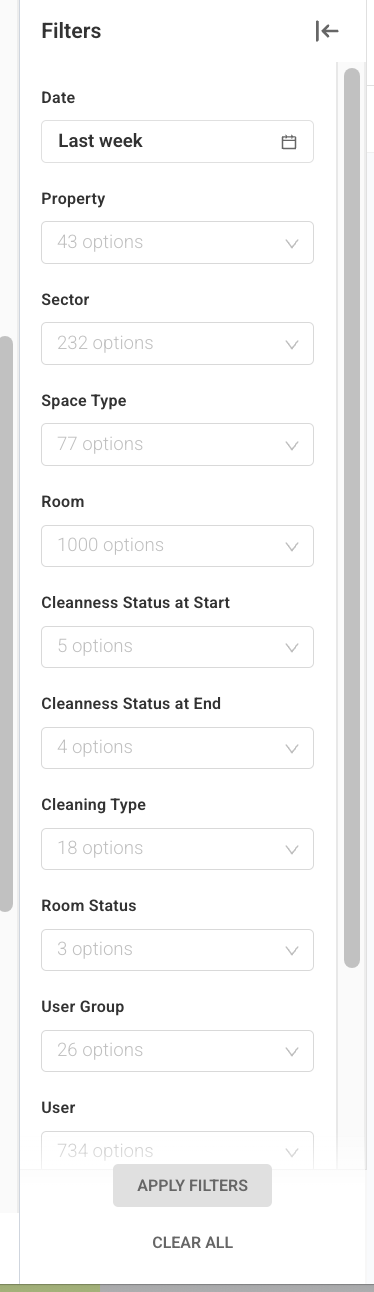
Using Filters
You can filter data by:
Date and time range
Property (single or multiple)
Sector or space type
Room or room type
Cleaning status (clean, inspected, etc.)
Cleaning type (departure, stayover, deep clean, custom types)
User group
Date & Time Filtering
You can filter by:
Last (Last Day, Last Week, Last Month, Last Quarter, Last Year)
Previous (Previous Week, Previous Month, Previous Year)
Custom (Specific date and time)
This allows very detailed analysis, like reviewing specific shifts or busy periods.
What the Dashboard Shows
1. Cleaning Volume Overview
Get a quick overview of:
How many rooms were cleaned
Cleaning status (clean vs. inspected)
Room status
Cleaning types
Every cleaning action is counted, even if a room is cleaned or inspected multiple times.
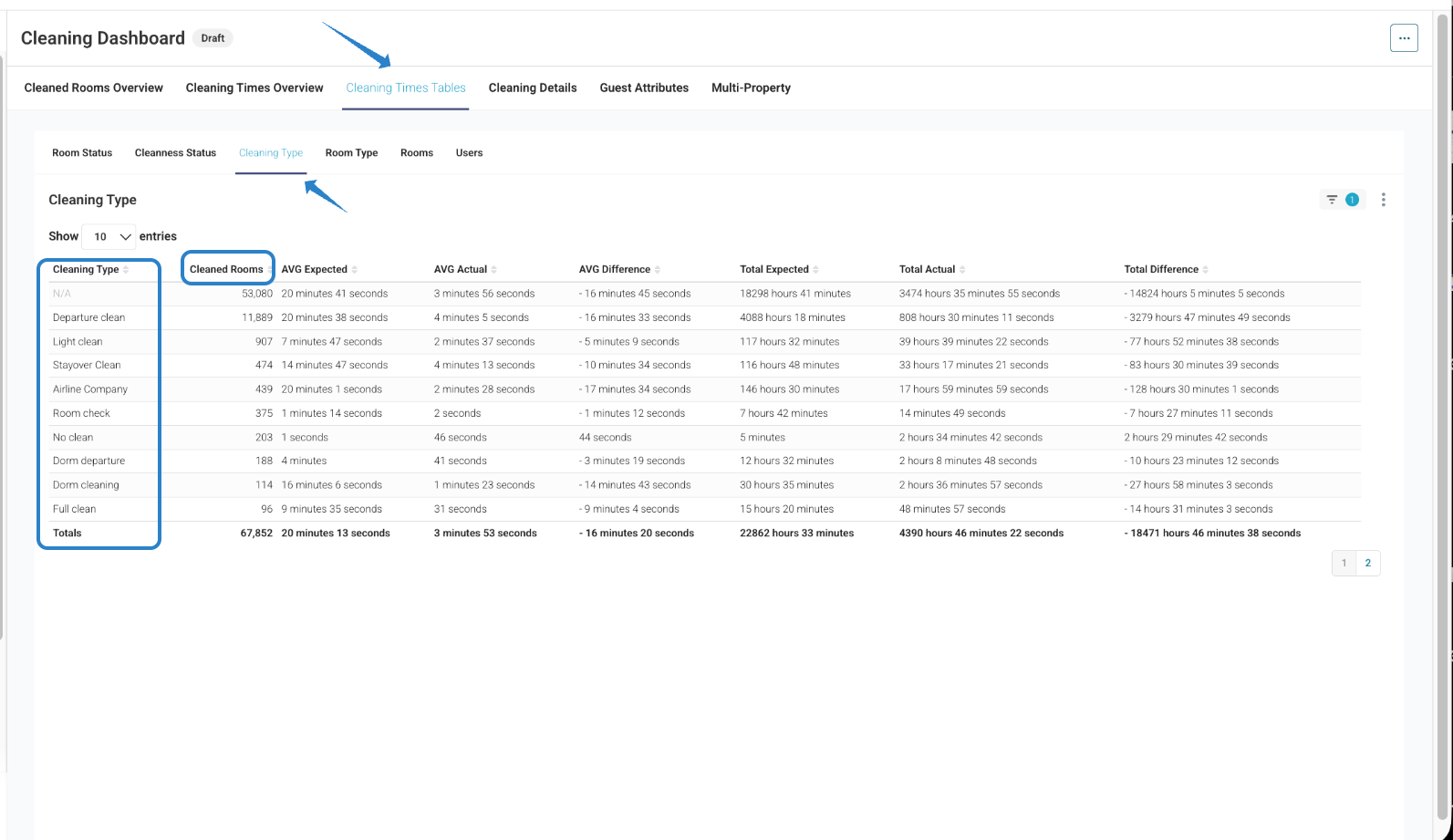
2. Cleaning Types (Including Custom Types)
The dashboard shows all cleaning types, including:
Departure clean
Stayover clean
Deep clean
Legionella checks
Any custom cleaning types configured at your property
If your property does not use cleaning types, these fields will show as Not specified.
3. Operational Efficiency Metrics
New KPIs help you understand team workload and productivity:
Number of housekeepers working per day
Average rooms cleaned per housekeeper per day
Expected vs. actual cleaning time
Average cleaning time per room
Total cleaning time
These metrics are useful for staffing decisions, workload planning, and compliance with labor or union rules.
4. Cleaning Time Analysis
You can compare:
Expected cleaning time vs. actual time
Results by:
Room status
Cleaning status
Cleaning type
Room type
User
This helps identify where cleaning takes longer than expected and where processes may need adjustment.
5. User & Team Performance
The dashboard shows:
How many rooms each user cleaned
Average and total cleaning time per user
This reflects actual recorded activity in the app. If a room is marked clean multiple times, all events are included.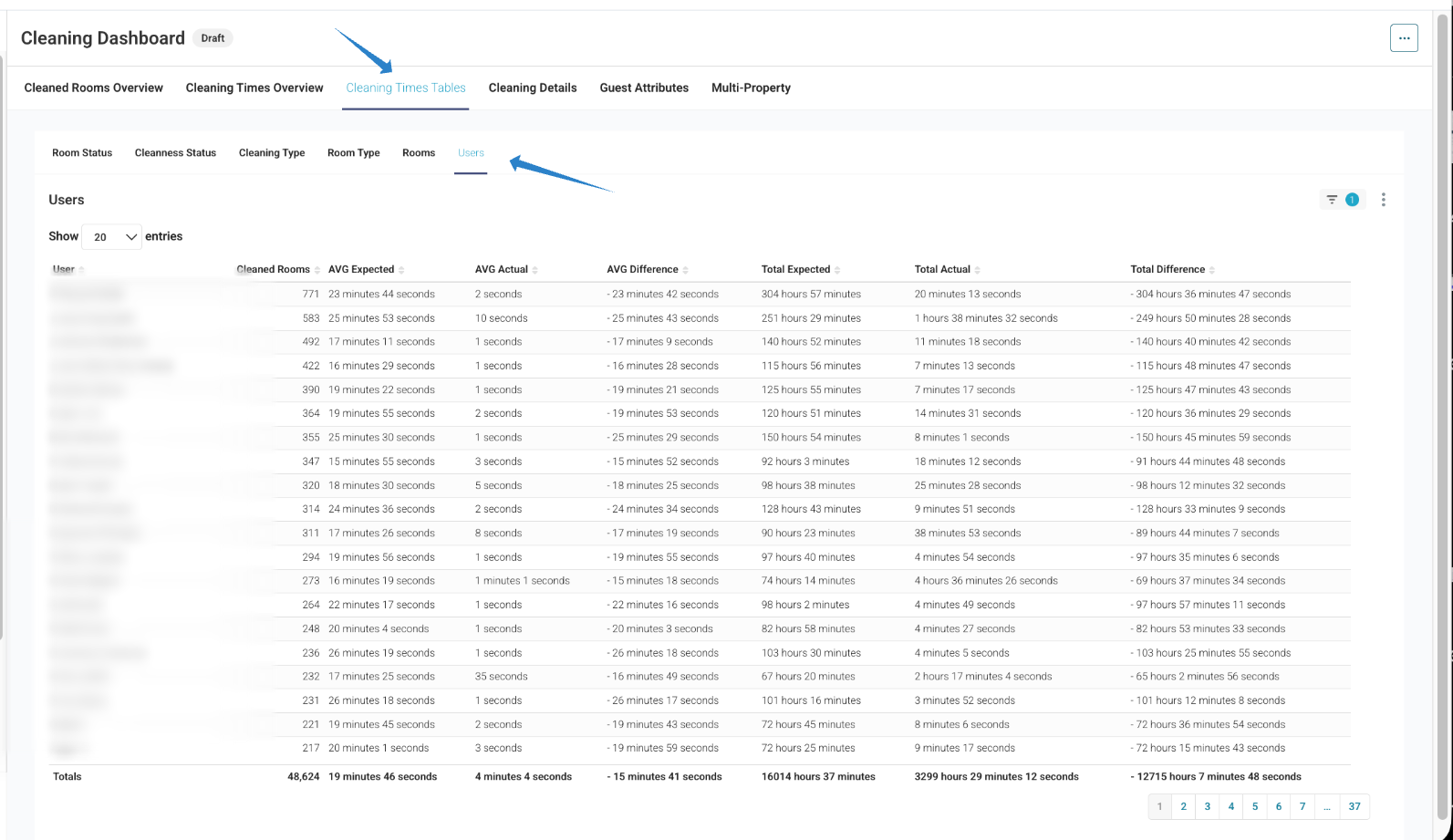
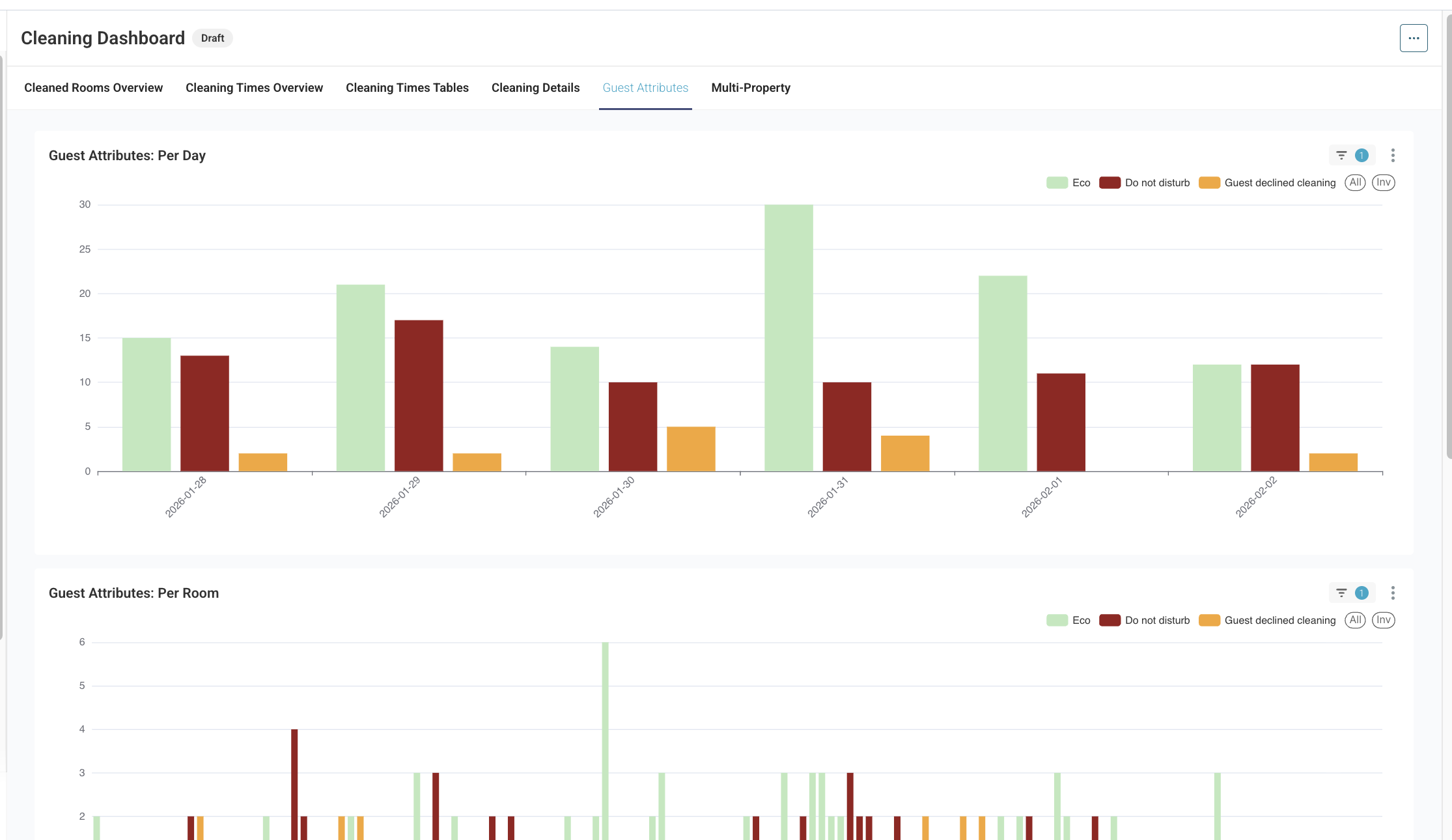
6. Guest Attributes
You can also review guest-related room attributes, such as:
Do Not Disturb
Eco / No Clean
Other special requests
Available views include:
Attributes per day
Attributes per room
Detailed attribute entries
This helps explain why certain rooms were not cleaned and provides better context for reports.
7. Tables & Exporting Data
For detailed analysis or sharing reports:
All key data is available in tables
You can export:
Excel files
Images
?Tip: Apply filters before exporting so you only download the data you need.

Multi-Property & Group Reporting
If you have access to multiple properties or tenants, one dashboard can show combined data. This is especially useful for hotel groups, chains, and HQ teams. You can also control data visibility by setting custom user permissions.
Important Notes & Limitations
Dashboard language is currently English only
Custom translations from localized labels are not reflected
Data updates once per day (not in real-time)
Very large date ranges may take longer to load
Charts are fixed and shared across all customers
Extra task credits and assignment bonuses are not yet included
These areas are planned for future improvements.
Tips From Team Flexkeeping
Use time-based filters for shift or workload analysis
Combine filters before exporting to simplify Excel work
Remember that all recorded actions are shown, which means analytics reflect real usage
For unusual data patterns, review internal processes first
Start with shorter date ranges for faster loading
Was this article helpful?
That’s Great!
Thank you for your feedback
Sorry! We couldn't be helpful
Thank you for your feedback
Feedback sent
We appreciate your effort and will try to fix the article